Give recorded speech a searchable written companion

Video to Text Converter

Read the spoken content of meetings, courses, tutorials, and product demos with a transcript you can edit.

Best accuracyProcess with the highest available accuracy
Free transcriptions today3 of 3 remaining

3 free transcriptionsNo sign-up requiredNo credit card required

Secure uploadPrivate processingExport as TXT, DOCX, PDF, SRT, or VTT
Editable TranscriptPrecise TimestampsSpeaker Labels3 Free DailyAutomatic Language DetectionPrivate ProcessingFlexible Exports

Five steps from recording to reusable writing

How to Convert Video to Text Online

1

Upload the recorded video

Choose a supported meeting, lesson, tutorial, or demo from your device. Video to Text starts with the uploaded recording, keeping the spoken track connected to the source you will use for review.

Drop audio or video here

or browse your files
2

Choose language and recognition

Select the spoken language or allow automatic detection. Enable speaker recognition for discussions. Video to Text settings describe the speech, even when slides or interface labels use a different language.

Audio languageEnglish
Transcription qualityBest accuracy
Start Transcription
3

Transcribe the spoken track

Start Video to Text to generate time-aligned written segments. The workflow recognizes speech; a silent slide, a diagram label, or a cursor movement needs your own contextual notes when it matters.

Creating transcript72%

Speech is becoming time-aligned text.

4

Check words with visual context

Review the Video to Text draft while watching relevant moments. Resolve product names, commands, measurements, and references such as this button before turning the recording into instructions for someone else.

00:00:05Speaker 1
00:00:12Speaker 2
00:00:19Speaker 1
Synced playback
5

Save and export the result

Export Video to Text as TXT, DOCX, PDF, SRT, VTT, CSV, or JSON. Use a document for reading or timed subtitle files when the destination needs captions beside a video.

Export as TXT
Export as DOCX
Export as PDF
Export as SRT
Export as VTT

Review the source before sharing the words

Find the Explanation Without Scrubbing the Timeline

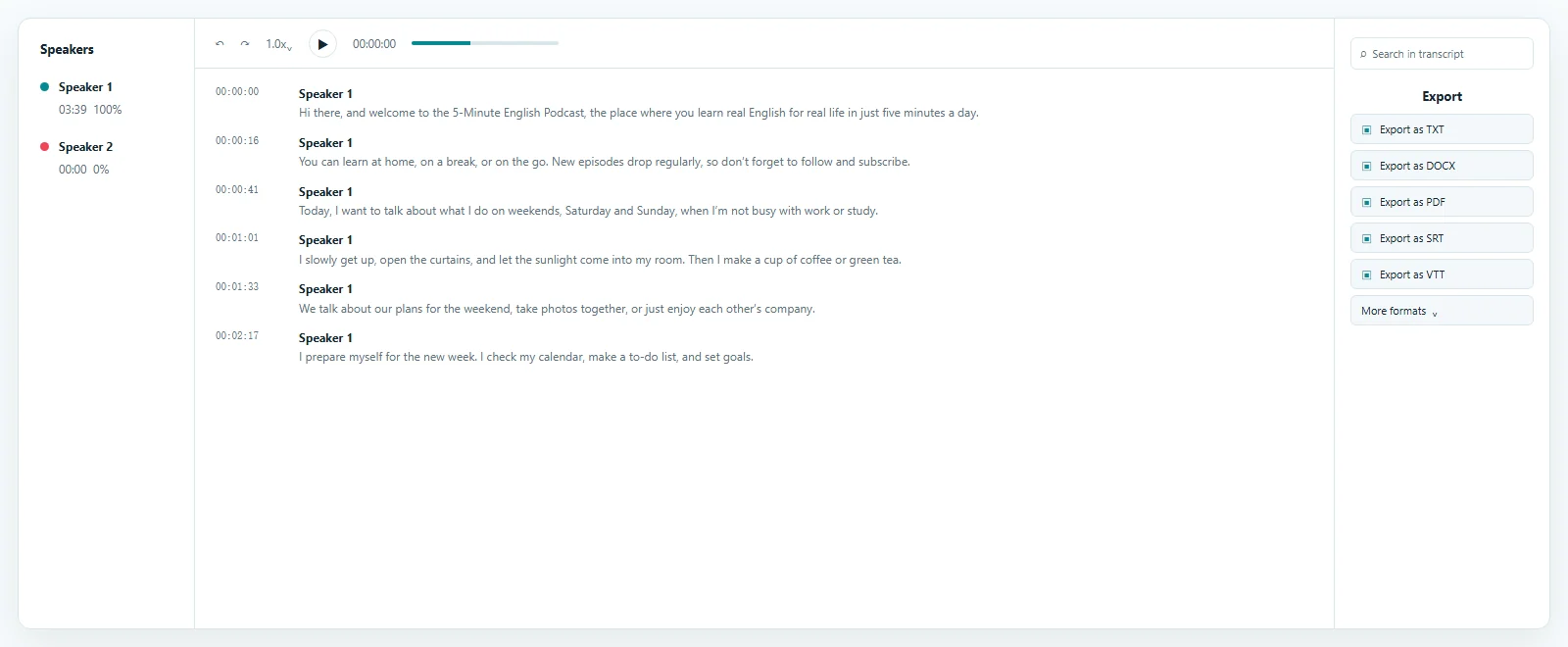
Video to Text gives a meeting or lesson a readable route back to the source. Search a term, open its timestamp, and compare the spoken explanation with the visible demonstration. Correct the wording before creating notes or sharing an excerpt, especially when the speaker points to something on screen.

Transcript result example

Recover decisions from a recorded discussion

Video to Text for Meetings

Meeting recordings often alternate between conversation and shared screens. Video to Text lets you locate a proposal by its wording, then watch the matching moment to understand the chart, design, or document being discussed.

Review whether an action was proposed, accepted, or postponed before adding it to minutes. Video to Text provides the spoken evidence, while the final record should identify the correct owner and deadline. Check names and numbers carefully when the discussion moves quickly.

Build study material around the original explanation

Courses and Tutorials as Searchable Text

Video to Text helps a learner return to one explanation inside a long lesson. Search the subject, replay the passage, and compare the written words with the example shown by the instructor.

For a tutorial, spoken steps and visible actions may differ. A presenter might say select this option while clicking a specific menu. Use Video to Text as a starting point, then add the verified interface name when preparing independent written instructions.

A full transcript preserves the sequence of the lesson. A study summary can rearrange topics, but it should remain grounded in the reviewed source. Keep timestamps for explanations you expect to revisit before an exam or practical task.

Connect product language with what appears on screen

Video to Text for Product Demonstrations

A demo transcript helps support writers locate feature explanations, onboarding guidance, and answers to common questions. Video to Text makes the speech searchable without requiring a writer to watch the entire presentation for every small revision.

Check version names and visible controls against playback before publishing instructions. A demonstration can describe an older interface, and automatic recognition may confuse a product term with an everyday word. Video to Text makes that review easier by preserving the source connection.

This category guide covers spoken video generally. Visit /mp4-to-text for an MP4-specific workflow, or /mp3-to-text when you have an audio-only interview. Related tools below connect these paths without requiring a separate search.

Select a transcript or timed captions

Use the Video to Text Result Where It Fits

A readable transcript and a subtitle file solve different tasks. Video to Text can supply TXT, DOCX, or PDF for reference documents, while SRT and VTT carry timed cues for compatible players and editors.

Caption delivery needs a timing review as well as corrected words. A full transcript is better for searching and quotation, while structured CSV and JSON support segment-based reuse. Save your Video to Text corrections before downloading another version for a different destination.

Answers before you upload

Video to Text FAQ

Is Video to Text free?

Yes. Try up to 3 free files per day, with the first 20 minutes of each file included, without a credit card. Longer complete recordings depend on account access.

How do I convert video to text?

Upload the recording, choose language and speaker settings, generate the transcript, review it beside playback, and export your corrected version.

Will words on slides become a transcript?

This workflow transcribes spoken audio. Silent titles, screenshots, and diagram labels do not become text simply because they appear in the video.

Can Video to Text help with meeting notes?

Yes. Search the transcript for decisions and tasks, verify the surrounding discussion, and use the reviewed material to prepare notes and follow-up actions.

Can I download subtitles?

Choose SRT or VTT after checking words and cue timing. These are separate subtitle files for compatible destinations.

Does Video to Text stay editable?

Yes. Correct wording, punctuation, and speaker labels before export, using the recording to resolve uncertain passages.

Which document formats can I use?

Video to Text offers TXT, DOCX, and PDF documents, alongside SRT, VTT, CSV, and JSON for timed or structured output.

How accurate are course transcripts?

Results depend on audible speech, terminology, accents, noise, and overlap. Verify equations, specialist names, and references to visible examples before sharing study material.

Start Your Video to Text Transcript

Use Video to Text to find the spoken details you need, check them against playback, and download a reviewed version for your next task.

Upload a Recording

Published · Reviewed