A starting point for spoken recordings in different formats

Audio to Text Converter

Turn spoken recordings from interviews, lectures, and everyday audio into searchable, editable writing.

Best accuracyProcess with the highest available accuracy
Free transcriptions today3 of 3 remaining

3 free transcriptionsNo sign-up requiredNo credit card required

Secure uploadPrivate processingExport as TXT, DOCX, PDF, SRT, or VTT
Editable TranscriptPrecise TimestampsSpeaker Labels3 Free DailyAutomatic Language DetectionPrivate ProcessingFlexible Exports

Five steps from recording to reusable writing

How to Convert Audio to Text Online

1

Choose your audio source

Upload a supported recording from your device. Audio to Text covers common audio formats, so start with the original interview, lecture, or voice memo rather than preparing an unnecessary converted copy.

Drop audio or video here

or browse your files
2

Describe the spoken language

Select the language or leave automatic detection enabled. Audio to Text can use speaker recognition when several people contribute; review the setting before starting an interview or group discussion.

Audio languageEnglish
Transcription qualityBest accuracy
Start Transcription
3

Create the initial transcript

Begin Audio to Text processing to produce editable segments aligned with the recording. The draft makes spoken material searchable, while the source remains available for checking words that need more attention.

Creating transcript72%

Speech is becoming time-aligned text.

4

Review meaning and attribution

Read the Audio to Text result alongside playback. Check names, technical terms, measurements, and speaker changes. A plausible sentence can still misrepresent what was said, so verify details that affect your next task.

00:00:05Speaker 1
00:00:12Speaker 2
00:00:19Speaker 1
Synced playback
5

Export for the destination

Download Audio to Text as TXT, DOCX, PDF, SRT, VTT, CSV, or JSON. Choose prose for reading, timed cues for compatible subtitle tools, or structured segments for a downstream system.

Export as TXT
Export as DOCX
Export as PDF
Export as SRT
Export as VTT

Review the source before sharing the words

Navigate a Recording Through Its Words

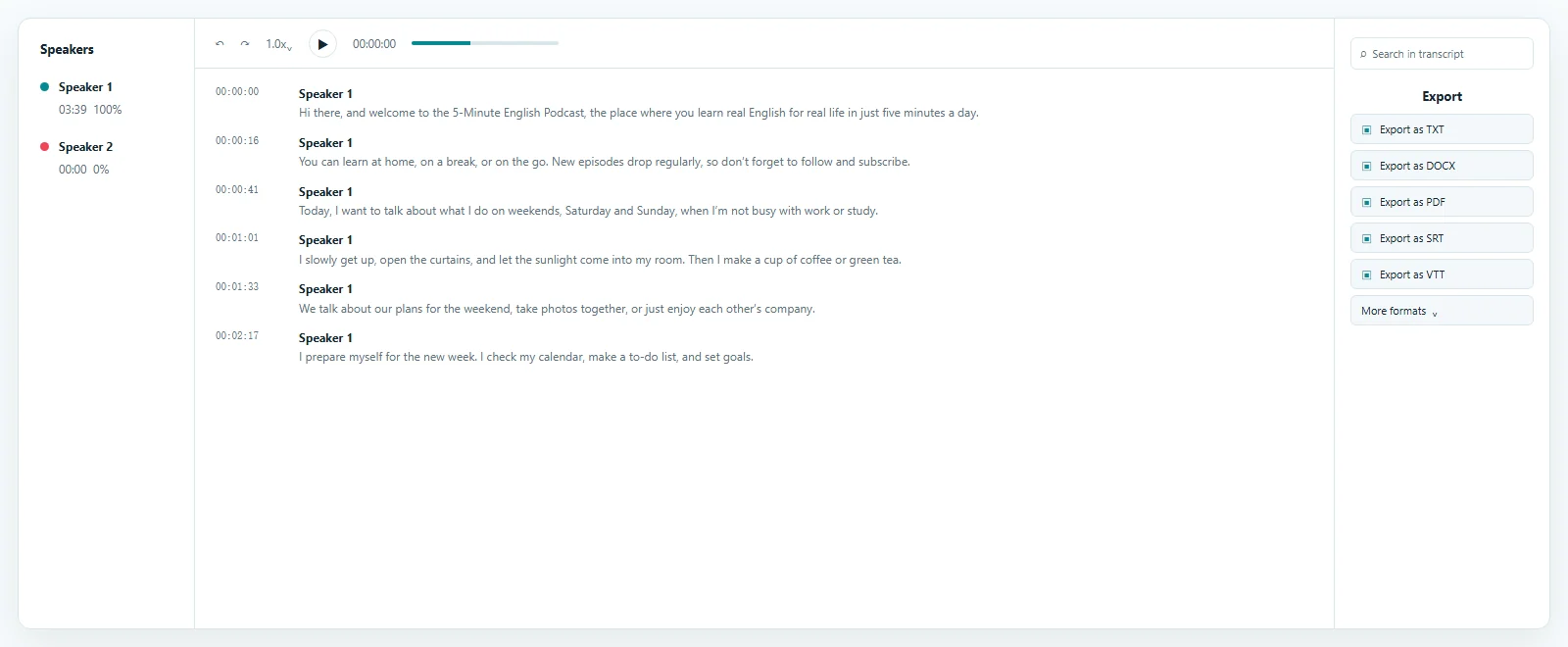
Audio to Text puts a readable draft beside playback so a researcher, student, or colleague can find the relevant passage quickly. Start with the full transcript, search for a subject, and listen at its timestamp. Summaries and notes can follow once the source wording has been checked and corrected.

Transcript result example

Choose a guide that matches the recording

Audio to Text Across Common Formats

Audio to Text is the general starting point when you have a spoken recording and need writing. The /mp3-to-text guide focuses on podcasts and compressed recordings; WAV, M4A, and OGG pages explain their own source-specific workflows.

You do not need to identify every codec before understanding the process. Check file acceptance in the uploader, retain the best available source, and choose language settings based on the speech. Audio to Text organizes the result around words and timing rather than a particular filename.

If your source includes a picture, see /mp4-to-text or the /video-to-text guide. Those pages discuss visual context during review. An audio recording still supplies the speech needed for a transcript, even when there is no image to accompany it.

Keep the source available during interpretation

Audio to Text for Interviews and Research

An interview transcript helps you compare answers, find themes, and build an evidence trail. Audio to Text gives researchers searchable passages, but quotations should still be checked at their original timestamps before entering a report.

Speaker recognition can help separate a moderator from participants. Review Audio to Text labels when people interrupt, share a microphone, or speak quietly. Consistent names make later analysis easier, especially when several recordings belong to the same project.

Read selectively and return to the lesson

Lectures, Voice Memos, and Team Discussions

Audio to Text can make a lecture easier to revisit when you remember the topic but not its place in the recording. Search the relevant term, listen to the explanation, and write your own study notes from the verified passage.

A short voice memo often contains several separate ideas. Use Audio to Text to identify tasks, questions, and reminders before moving them into your usual planning system. Check the intended date and recipient whenever the recording mentions a commitment.

For team discussions, distinguish a proposed action from a confirmed decision. The transcript records speech; a reviewer supplies the context needed to prepare useful minutes and assign follow-up work correctly.

Match the written result to its next use

Export an Audio to Text Transcript

Audio to Text documents can be shared as lightweight TXT, editable DOCX, or PDF reading copies. Timed SRT and VTT files support compatible caption workflows; CSV and JSON retain a structure useful for segment-based work.

Before exporting, check the details that matter to the destination. Names and quotations are essential in research, while cue boundaries matter for timed text. Audio to Text keeps saved corrections available so another export can use the reviewed wording without starting again.

Answers before you upload

Audio to Text FAQ

Is Audio to Text free?

Yes. The allowance covers up to 3 free files per day and the first 20 minutes of each file without a credit card, letting you try the review and export workflow.

Which recording should I upload?

Use a clear supported original. Converting a noisy recording to another format cannot recover speech that was never captured clearly.

How does Audio to Text transcription work?

Upload the source, choose or detect its language, generate the transcript, correct uncertain passages against playback, and export the saved result.

Can Audio to Text distinguish speakers?

Speaker recognition can separate voices in many conversations. Review the assignments because overlapping speech, similar voices, or background noise can confuse labels.

Does this work for video too?

For recordings with a picture, use the related video guides. This hub explains the general speech transcription workflow for audio sources.

Can I change the transcript after processing?

Yes. Edit wording and speaker labels before downloading. Check important details directly against the original recording.

What can I download?

Audio to Text supports TXT, DOCX, PDF, SRT, VTT, CSV, and JSON exports for document, timed-text, and structured workflows.

Will every word be correct automatically?

No automatic draft is guaranteed. Clarity, accents, noise, terminology, and competing voices affect recognition, so review material that you plan to quote or share.

Start Your Audio to Text Transcript

Use Audio to Text to find the spoken details you need, check them against playback, and download a reviewed version for your next task.

Upload a Recording

Published · Reviewed