Create a separate SRT subtitle file

Video to SRT Converter

Generate SRT subtitles from video with timestamps, speaker labels, and editable text.

Best accuracyProcess with the highest available accuracy
Free transcriptions today3 of 3 remaining

3 free transcriptionsNo sign-up requiredNo credit card required

Secure uploadPrivate processingExport as TXT, DOCX, PDF, SRT, or VTT
Editable SubtitlesPrecise TimestampsCommon Video Formats3 Free DailyAutomatic Language DetectionPrivate ProcessingSRT Downloads

Four steps from spoken video to timed subtitles

How to Generate an SRT File from Video

1

Upload Your Video

Choose an authorized video and upload it directly. ToText accepts MP4, MOV, WebM, and other supported media, so the Video to SRT workflow can use the spoken track without separate audio extraction.

Drop audio or video here

or browse your files
2

Start Transcription

Select the spoken language or keep automatic detection enabled, then start transcription. Video to SRT creates readable, time-aligned segments and can separate voices when the recording contains multiple speakers.

Audio languageEnglish
Transcription qualityBest accuracy
Start Transcription
3

Review the Subtitle Text

Read the Video to SRT draft beside playback. Return to a timestamp, correct names or technical terms, check punctuation, and review speaker labels before preparing the subtitle file.

00:00:05Speaker 1
00:00:12Speaker 2
00:00:19Speaker 1
Synced playback
4

Export as SRT

Open Export and choose SRT. The downloaded Video to SRT file contains numbered subtitle blocks, start and end times, and the latest saved text for use in a compatible destination.

Export as TXT
Export as DOCX
Export as PDF
Export as SRT
Export as VTT

Review every subtitle before download

Preview and Edit Your SRT Subtitles

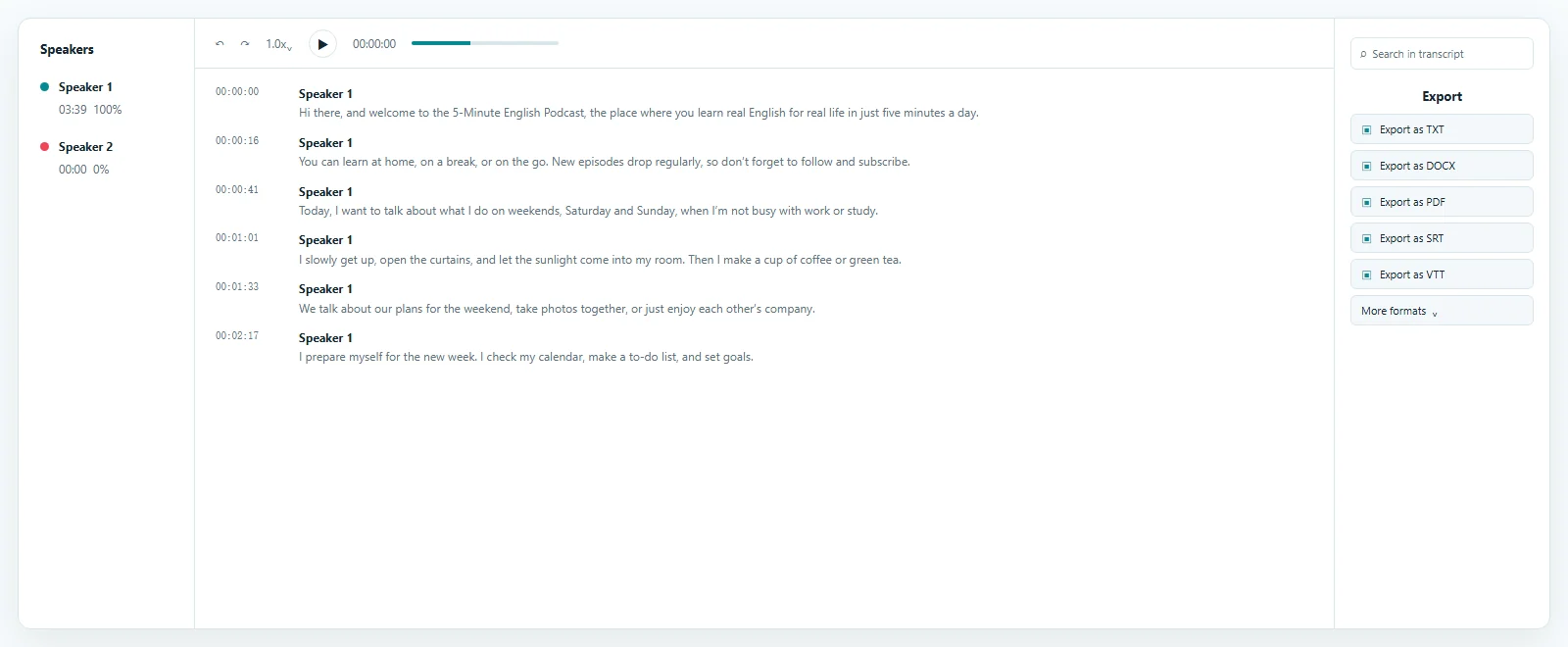
The subtitle preview keeps timestamped text connected to playback. Move from a subtitle line to the matching moment, correct the wording, and confirm speaker information before downloading a separate SRT file. The Transcript tab opens first so the timed draft is ready to review.

Transcript result example

Check Words Against the Source

A Video to SRT draft may need corrections for names, numbers, acronyms, or specialist vocabulary. Replay the timestamp, listen again, and edit the subtitle text while the recording remains available.

Review Speaker Labels

Speaker labels can clarify interviews, meetings, and conversations. Review detected voices and decide during export whether the Video to SRT result should include speaker information.

Timed text that remains independent from the source media

Create Time-Coded Subtitles That Stay Separate from the Video

Video to SRT creates a text-based subtitle file rather than a new video.

Timing is the main difference between a subtitle file and a plain transcript. Each Video to SRT cue stores a sequence number, a start time, an end time, and the text that a compatible player or editor can display during that interval.

Because the Video to SRT output stays separate, the source recording remains unchanged. You can edit, replace, or reuse the subtitle track later in software or platforms that accept standard SRT files.

1
00:00:01,200 --> 00:00:04,000
Welcome back. Today we are reviewing the final project.

2
00:00:04,300 --> 00:00:07,600
First, let us look at the changes from last week.

Why Timestamps Matter

Video to SRT adds the start and end times needed for synchronized subtitles. Those times tell a compatible destination when each line should appear and disappear.

SRT Is Not Burned-In Captions

ToText exports a separate Video to SRT subtitle file. It does not permanently render styled captions into the video image or provide font, color, animation, and final-video rendering controls.

Take reviewed subtitles into the next compatible workflow

Export SRT for Video Players, Editors, and Publishing Workflows

A reviewed Video to SRT file can move into compatible playback, editing, and publishing workflows.

SRT keeps subtitle text and timing in a simple asset that stays separate from the source recording. Preview the imported subtitles in the destination, especially if the video timeline changed after transcription.

Video Editing

Import the Video to SRT file beside the source media as a timed subtitle track. This avoids typing and timing every spoken line from the beginning.

Publishing and Accessibility

A separate Video to SRT track can make authorized content easier to follow without sound or when viewers prefer to read along. Compatibility and presentation remain controlled by the destination.

Keep Other Export Options Available

SRT remains primary on this page, while VTT, TXT, DOCX, PDF, CSV, JSON, and other available formats stay in the existing export menu for follow-up needs.

One subtitle workflow for several supported containers

Supported Video Files for SRT Conversion

You can convert video to SRT from a supported file without changing its container first.

The generic Video to SRT page serves MP4 presentations, MOV recordings, WebM screen captures, and other supported video inputs. The dedicated MP4 to SRT page continues to own searches where MP4 is the specific source format.

Use the Original Video When It Is Supported

Start the Video to SRT workflow from the file you already have. Avoiding an unnecessary conversion keeps the task focused on speech, timing, review, and SRT export.

One Transcription, Multiple Deliverables

After Video to SRT processing, reuse the saved transcript for search, summaries, documents, or another available export without uploading and transcribing the video again.

Answers before you upload

Video to SRT FAQ

What is an SRT file for video?

SRT is a text-based subtitle format that stores lines with start and end timestamps. Video to SRT creates this timed file from the spoken content in a video.

Is Video to SRT free?

Yes. Free accounts can process up to 3 files daily, with the first 20 minutes of each file included, without a credit card, so you can test the Video to SRT workflow before purchasing additional usage.

Do I need to extract audio before converting video to SRT?

No. Upload a supported video directly. Video to SRT transcribes its spoken track without requiring a separate MP3 or WAV file first.

Can I edit subtitles before downloading the SRT file?

Yes. Review timestamped segments, correct wording, and adjust speaker information before exporting the final Video to SRT file.

Does Video to SRT add subtitles permanently to the video?

No. Video to SRT creates a separate SRT subtitle file and does not permanently render captions into the source image.

Can I convert MP4 video to SRT?

Yes. MP4 is supported, and the dedicated MP4 to SRT page serves users whose input format is specifically MP4. This page owns the broader Video to SRT intent.

Does SRT include timestamps?

Yes. Start and end timestamps are the core difference between a plain transcript and the timed cues created by Video to SRT.

Can I export VTT instead of SRT?

Yes. ToText also supports VTT as a timed-text export, while Video to SRT remains the primary task and SRT stays prominent in the export workflow.

Create an SRT File from Your Video

Use Video to SRT to turn spoken video into editable, time-coded subtitles. Upload your video, review the text and timestamps, then download an SRT file for your next workflow.

Upload a Video

Published · Reviewed