1
Upload audio or video
Drop a recording into the speech to text Word converter or browse your device.
Drop audio or video here
or browse your files
Upload an audio or video recording, generate an accurate transcript, and download the result as an editable Word document.
3 free transcriptionsNo sign-up requiredNo credit card required
Four steps from a recording to an editable DOCX
Drop a recording into the speech to text Word converter or browse your device.
Drop audio or video here
or browse your files
Select automatic detection or the spoken language, then enable any settings the recording needs.
Create the transcript, replay uncertain segments, and correct important wording against the source recording.
Save your edits, choose DOCX, then open the downloaded document in Word or a compatible editor.
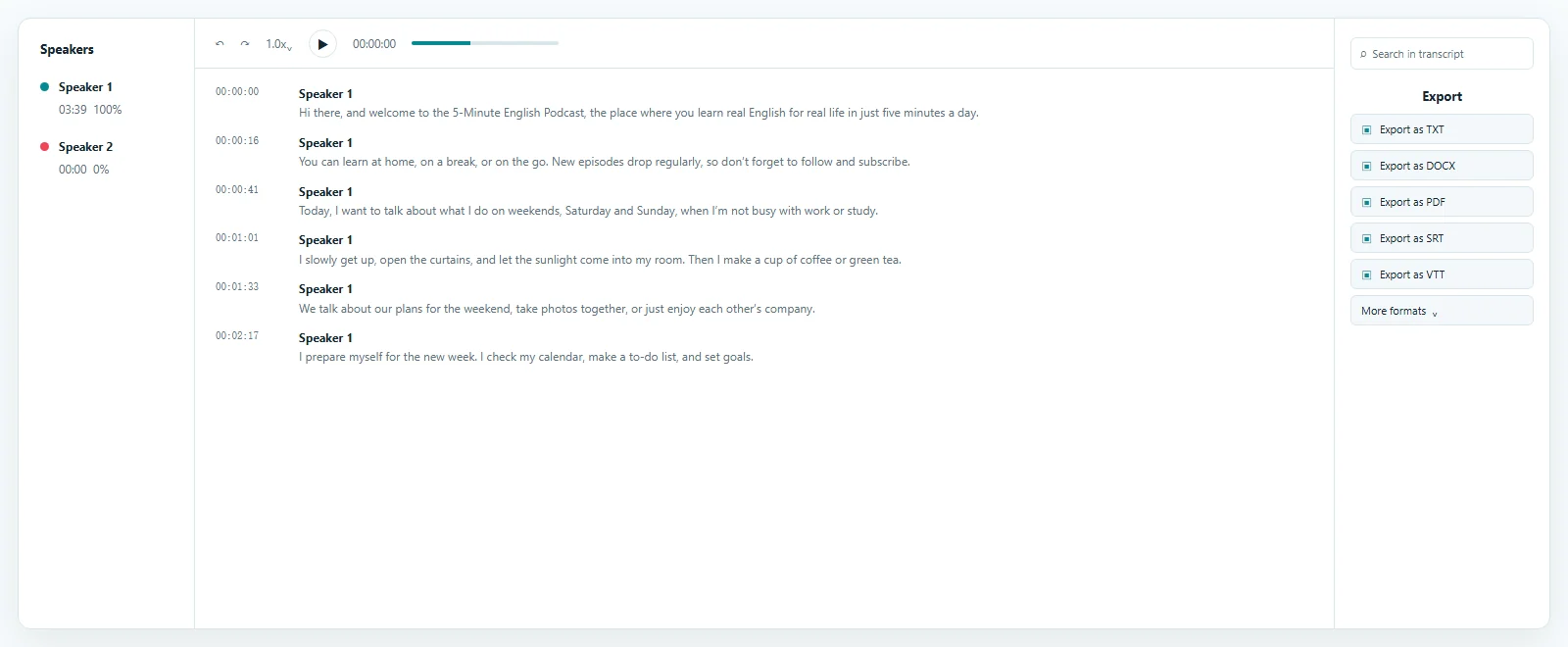
Review spoken content beside the source recording
Upload a saved recording to generate editable text aligned with playback. A speech to text Word result lets you search, replay important moments, and correct names, figures, or quotations before creating a DOCX file.
Turn an automated draft into dependable writing
Edit names, dates, figures, quotations, terminology, and punctuation before exporting. Replay each uncertain speech to text Word segment and use the recording for final approval.
Speaker labels organize conversations. Rename speakers after checking their voices. The editable speech to text Word transcript remains connected to playback.
Jump to the matching recording moment and verify important statements.
Correct mistakes before the speech to text Word document is shared.
Find subjects, summaries, and action items without replaying everything.
Keep saved corrections in a portable document
Choose DOCX from the export menu after saving your review. It is the primary output for this speech to text Word online workflow and includes the latest transcript revisions.
A speech to text Word document provides editable paragraphs. Keep the recording nearby for quotations, and name the export so it remains connected to its source.
ToText also offers TXT, PDF, SRT, VTT, and structured formats. Choose DOCX for continued writing, formatting, comments, or collaboration.
Download speech to text Word content for continued editing.
Save corrections and generate an updated DOCX without retranscribing.
Choose TXT, PDF, captions, or structured data for other needs.
Useful documents from conversations and presentations
Use a speech to text Word converter when a meeting or interview needs a searchable record. Review decisions, questions, and quotations without typing the full recording.
The same speech to text Word process supports research, calls, presentations, lectures, voice notes, and training. Verify important wording.
Capture decisions, owners, and follow-up tasks in an editable document.
Use speech to text Word output to locate answers and quotations.
Transform explanations into searchable notes or documentation.
Use speech to text Word for saved voice notes and editable drafts.
Continue working after the transcript is downloaded
Open the DOCX in Microsoft Word or a compatible word processor. The speech to text Word export remains editable for headings, fonts, spacing, page breaks, and tables.
Add comments or combine the transcript with a report. ToText creates the DOCX; it does not activate dictation or change application settings.
Open the downloaded document and confirm headings, names, and spacing before sharing the final copy.
Apply your preferred styles and layout to the speech to text Word export.
Share an authorized DOCX and collect edits or comments.
Combine transcript passages with analysis or supporting material.
Answers before you upload
It transcribes audio or video, then exports the reviewed text as DOCX.
To create a speech to text Word document, upload a recording, choose settings, review the transcript, and export DOCX.
Yes. Free accounts can process up to 3 files daily, with the first 20 minutes of each file included, without a card, while eligible access supports uploads up to 20 hours.
Supported formats include MP3, WAV, M4A, AAC, MP4, MOV, MKV, and WebM.
Yes. Correct text, speakers, and timing, then save and download DOCX.
Yes. The speech to text Word export uses the latest saved transcript revisions.
Yes. Enable them before processing, then review labels and timing with the source.
No. Save a recording first, then upload it for transcription and DOCX export.
Explore more formats and outputs
Upload a recording, review the transcript, and complete the speech to text Word workflow with an editable DOCX.
Published · Reviewed