1
Upload Your OGG File
Choose an authorized .ogg recording and upload it directly. OGG to Text uses the source file you already have, so you do not need to make an MP3 or WAV copy before transcription.
Drop audio or video here
or browse your files
Transcribe OGG audio into editable text with timestamps, speaker labels, and flexible exports.
3 free transcriptionsNo sign-up requiredNo credit card required
Four steps from OGG audio to reviewed writing
Choose an authorized .ogg recording and upload it directly. OGG to Text uses the source file you already have, so you do not need to make an MP3 or WAV copy before transcription.
Drop audio or video here
or browse your files
Select the spoken language or keep automatic detection enabled, then start processing. OGG to Text creates readable, time-aligned segments and can distinguish voices when a recording contains multiple speakers.
Read the OGG to Text draft beside playback. Open a timestamp to check a name, number, quotation, or specialist term, then correct the text and speaker labels where needed.
Export the reviewed OGG to Text result as TXT, DOCX, PDF, SRT, VTT, CSV, or JSON. The same saved transcript can also support summaries, notes, chapters, translations, and action items.
Review the words against the recording
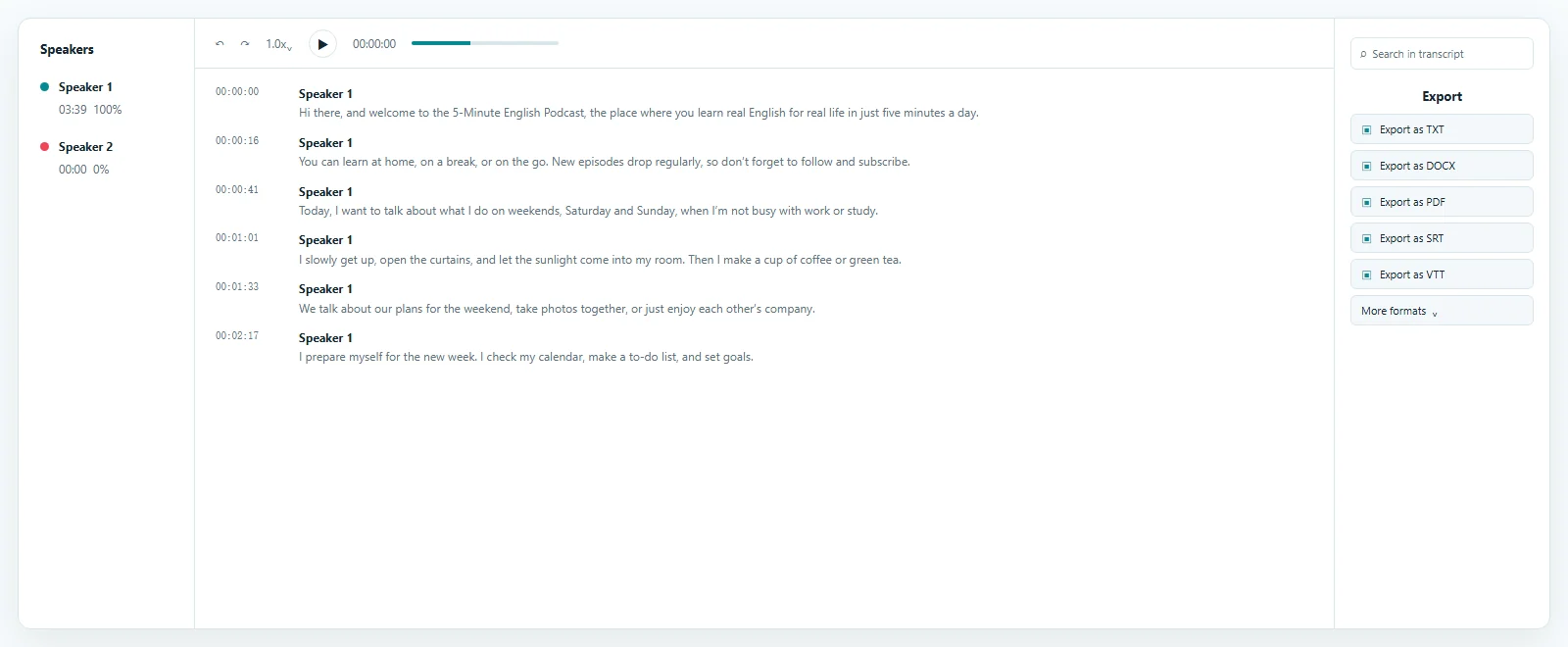
The OGG to Text preview places timestamped transcript segments beside playback, making the draft easy to read, verify, and edit. Search for a phrase, return to the matching moment, correct important wording, and review speaker labels before export. Transcript opens by default, while the other workspace views show how one reviewed recording can support summaries, notes, chapters, and action items.
Start with the recording you already have
OGG to Text accepts supported OGG audio directly, without requiring another container first.
This OGG transcription path avoids an extra conversion that creates another copy but adds no spoken information. Starting from the original recording also leaves the same source available when a word needs to be checked against playback.
OGG recordings can come from browser voice tools, open-source applications, communication workflows, games, or exported voice messages. The source may be a brief note or a long conversation, but the task remains the same: make the speech searchable and editable.
Timestamps turn an OGG to Text transcript into a navigation layer for the audio. Search the written result, open the relevant time, and listen again without replaying the recording from the beginning.
Use OGG to Text for supported web recordings, application audio, voice notes, interviews, lectures, podcasts, meetings, and other files that contain speech you have permission to process.
Context for when, who, and what was said
A structured OGG to Text transcript shows more context than an unreviewed block of plain text.
Timing, speaker recognition, and editable segments help with interviews, meetings, research recordings, podcasts, and conversations. Automatic transcription prepares the first draft, while the connected recording lets you retain control over the final wording.
OGG to Text links each segment to its place in the recording. Use timing to verify a quotation, revisit a discussion, locate material for editing, or prepare a subtitle export without searching manually.
Speaker recognition can separate voices and make a conversation easier to scan. Review every OGG to Text label because similar voices, overlap, microphone placement, and background noise can affect automatic assignments.
Check names, abbreviations, numbers, product terms, and specialist vocabulary while the source remains available. Save the corrected OGG to Text transcript before quoting, publishing, sharing, or creating subtitles from it.
Prepare one transcript for several next steps
A reviewed OGG to Text result can become a document, subtitle file, structured dataset, or source for follow-up content.
Choose an export for the immediate task without transcribing the recording again. Saved corrections carry into later downloads, so the reusable transcript remains the working layer between the original audio and each deliverable.
Download OGG to Text as lightweight TXT, an editable DOCX document, or a fixed PDF copy for sharing and archiving. Each format uses the same reviewed words.
Export SRT or VTT when the next workflow needs timed subtitle cues. Review the OGG to Text wording and timestamps first, then import the separate subtitle file into a compatible destination.
Use structured exports when transcript segments, timestamps, or speaker information need to move into documentation, analysis, development, or archival systems.
Continue from the OGG to Text workspace to prepare summaries, meeting notes, chapters, translations, or action items without uploading and processing the same audio again.
Make spoken information easier to find and reuse
OGG to Text is useful when speech inside an OGG recording needs to become searchable, editable, or reusable.
The recording may contain a quick thought, an extended interview, a class, or application audio. In every case, the transcript makes specific passages easier to locate while the original remains available for verification.
Turn short notes and browser recordings into readable writing that can be searched, quoted, or archived. OGG to Text preserves timing for returning to the source when context matters.
Use timestamps and editable speaker labels to preserve conversational context. An OGG to Text transcript can then support notes, decisions, quotations, and authorized follow-up work.
Search long-form speech for a passage, verify it against playback, and move useful sections into study notes, research records, articles, or production drafts.
Transcribe OGG from open and web-oriented workflows without abandoning the original file simply to access the speech as writing. Export human-readable or structured data for the next authorized task.
Answers before you upload
Yes. Free accounts can process up to 3 files daily, with the first 20 minutes of each file included, without a credit card, letting you test OGG to Text before purchasing additional usage.
They describe the same task. OGG to Text emphasizes the written result, while OGG to Transcript emphasizes transcription; both start with spoken OGG audio and end with editable writing.
No. Upload a supported OGG file directly. OGG to Text processes its spoken content without requiring a separate MP3 or WAV copy first.
Yes. Speaker recognition can distinguish voices, and the OGG to Text result keeps labels editable so assignments can be corrected after reviewing the source audio.
Yes. After transcription, download TXT or choose DOCX, PDF, SRT, VTT, CSV, JSON, or another format available in the export menu.
Yes. A reviewed OGG to Text transcript can be exported as a separate SRT or VTT file when the next workflow needs timed subtitle cues.
Use OGG to Text for supported files containing spoken audio, including authorized voice notes, interviews, lectures, meetings, podcasts, and web or application recordings.
Results depend on speech clarity, accents, vocabulary, background noise, microphone quality, compression, and overlap. OGG to Text keeps timestamps and playback available for checking important wording.
Explore more formats and outputs
Turn OGG Audio into Usable Text
Use OGG to Text to make spoken audio searchable and editable without changing the recording first. Upload the OGG file, review the transcript against the source, then export or reuse the result.
Published · Reviewed