Direct transcription for MOV video files

MOV to Text Converter

Transcribe MOV files into an editable transcript with timestamps, speaker labels, and flexible export formats.

Best accuracyProcess with the highest available accuracy
Free transcriptions today3 of 3 remaining

3 free transcriptionsNo sign-up requiredNo credit card required

Secure uploadPrivate processingExport as TXT, DOCX, PDF, SRT, or VTT
Editable TranscriptsAutomatic Language Detection20-Hour UploadsSpeaker RecognitionPrivate ProcessingFlexible Exports

Four steps from a MOV recording to usable text

How to Convert MOV to Transcript

1

Upload Your MOV File

Choose the MOV file you want to transcribe and upload it directly. MOV to Text processes the spoken track from the original recording without requiring an MP4 copy or separate audio extraction.

Drop audio or video here

or browse your files
2

Start Transcription

Select the language or keep automatic detection enabled, then start transcription. MOV to Text creates readable, time-aligned segments and can identify different speakers in a conversation.

Audio languageEnglish
Transcription qualityBest accuracy
Start Transcription
3

Review and Edit the Transcript

Open the MOV to Text transcript beside the source recording. Use timestamps to replay important wording, correct names or technical terms, and adjust speaker labels when needed.

00:00:05Speaker 1
00:00:12Speaker 2
00:00:19Speaker 1
Synced playback
4

Export or Continue Working

Export the reviewed MOV to Text result as TXT, DOCX, PDF, SRT, VTT, CSV, or JSON. You can also create summaries, meeting notes, chapters, or action items without transcribing the video again.

Export as TXT
Export as DOCX
Export as PDF
Export as SRT
Export as VTT

Review written content beside the source recording

Preview Your MOV Transcript

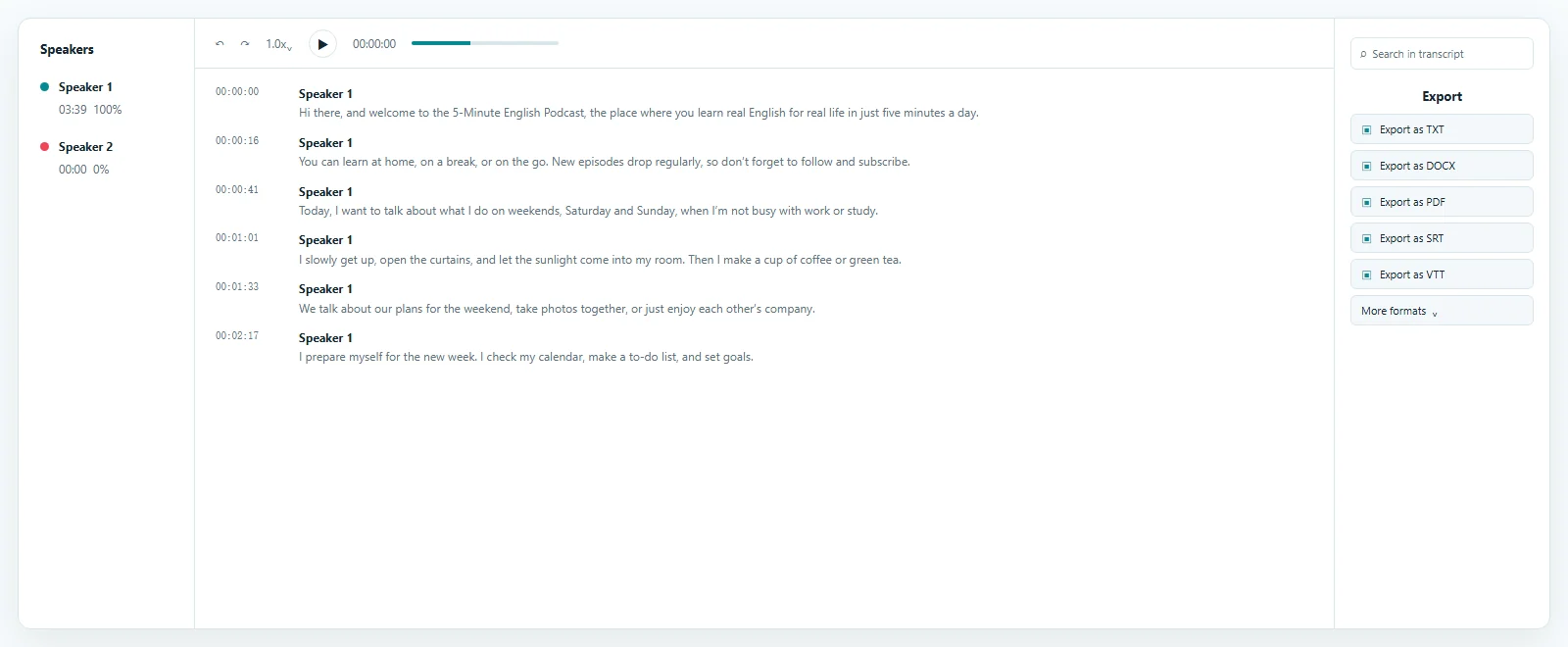
The MOV to Text preview combines editable, timestamped segments with speaker labels and playback controls. Search for a phrase, jump to the related moment, and correct the wording before reusing the transcript. The Transcript tab opens first, while Summary, Meeting Notes, Chapters, and Action Items remain available for follow-up work.

Transcript result example

Start with the recording you already have

Convert MOV to Text Without Converting the Video First

Upload a supported MOV recording directly; no preliminary video conversion is required.

MOV is common for camera recordings, QuickTime videos, screen captures, presentations, and interviews. MOV to Text creates the transcript from the spoken audio while the original video remains available as the reference.

Search the MOV to Text transcript for a person, product, topic, decision, or quotation, then return to its timestamp instead of replaying the entire recording. MOV to Transcript, transcribe MOV, and convert MOV to text describe this same recording-to-writing task, so they belong on one page.

Keep the Source Recording Connected

MOV to Text keeps timestamps connected to the video so you can replay a name, number, acronym, or specialist phrase. For a long interview or meeting, the searchable transcript becomes a navigation layer rather than a disconnected document.

Preserve context while refining the transcript

MOV to Text with Timestamps, Speaker Labels, and Editing

MOV to Text timestamps and editable speaker labels preserve context that plain text leaves out.

A structured MOV transcript shows when a segment was spoken and can separate conversation turns. This makes interviews, research sessions, meetings, support calls, and presentations easier to review without treating automatic output as final.

Timestamps for Faster Review

Timestamps connect each section to the source recording. In a MOV to Text workflow, they help verify quotations, revisit a discussion, locate an edit, or prepare timed-text files without searching through the full video.

Speaker Labels for Conversations

Speaker labels make a MOV to Text result easier to scan when several people are talking. ToText can separate voices, and you can rename or correct the labels after transcription.

Edit Before Exporting

Correct names, acronyms, numbers, punctuation, and specialist terms while playback is available. Export only after checking wording that will be quoted, published, or shared.

Choose the output that fits the next task

Export and Reuse Your MOV Transcript

A reviewed MOV to Text transcript can support documents, subtitles, or structured-data workflows.

Export MOV to Text once as TXT, DOCX, PDF, SRT, VTT, CSV, or JSON. Choose a document format for reading and sharing, timed text for compatible subtitle tools, or structured data for another application.

TXT, DOCX, and PDF

Use TXT for lightweight plain text, DOCX for an editable document, or PDF for a fixed copy. Each export comes from the same reviewed MOV to Text transcript.

SRT and VTT

SRT and VTT preserve reviewed wording and timing as separate subtitle files. They do not burn, embed, or merge captions into the source video.

CSV and JSON

Use structured exports when transcript segments, timestamps, or speaker information need to move into another application or workflow.

Summaries, Notes, and Action Items

Reuse the same MOV to Text result for summaries, meeting notes, chapters, or action items without another upload or transcription job.

Search, review, quote, and repurpose spoken video

Common Uses for MOV to Text

MOV to Text makes spoken information easier to search, quote, document, and repurpose.

The source may be a camera recording, QuickTime file, meeting, interview, lecture, or creative project. Each MOV to Text use case follows the same upload, review, and export workflow.

Interviews and Meetings

Create a MOV to Text transcript with timestamps and speaker labels, verify key statements, and continue from the recording to notes, decisions, or action items.

Lectures and Research Recordings

Search long recordings, return to specific explanations, and move relevant passages into notes while preserving the link between a quotation and its source.

Presentations and Screen Recordings

Use a MOV to Text transcript to scan a presentation, find the moment a topic was discussed, and reuse spoken material in documentation or follow-up content.

Creators and Video Teams

Use a reviewed MOV to Text transcript for show notes, articles, captions, clips, summaries, or social content without manually typing the recording.

Answers before you upload

MOV to Text FAQ

Is MOV to Text free?

Yes. Free accounts can process up to 3 files per day, with the first 20 minutes of each file included, without a credit card.

What is the difference between MOV to Text and MOV to Transcript?

They describe the same task. MOV to Text emphasizes written output and the other phrase emphasizes transcription; both end with an editable MOV transcript.

Do I need to convert MOV to MP4 first?

No. Upload a supported MOV file directly and process its spoken content without creating a separate MP4 copy.

Can MOV to Text identify different speakers?

Yes. Speaker recognition can separate voices, and the labels remain editable for corrections after you review the recording.

Can I export MOV to TXT?

Yes. Export the reviewed transcript as TXT, DOCX, PDF, SRT, VTT, CSV, or JSON.

Can I create subtitles from a MOV recording?

Yes. Export a reviewed MOV transcript as a separate SRT or VTT timed-text file.

Does MOV to Text work with long recordings?

Yes. Paid access supports complete recordings up to 20 hours, and timestamped segments keep long transcripts easier to review.

How accurate is MOV to Text?

Accuracy depends on recording quality, accents, vocabulary, noise, microphone placement, and overlapping speech. Use timestamps and playback to verify important wording.

Turn Your MOV Recording into Usable Text

Use MOV to Text to create searchable, editable writing without converting the video first. Review the transcript against the source, then export or reuse it for your next task.

Upload a MOV File

Published · Reviewed