Choose an authorized MP3, M4A, WAV, OGG, or another supported recording. Audio to SRT starts from the source file, so a blank video or separate media conversion is unnecessary.
Drop audio or video here
or browse your files
2
Transcribe Speech into Timestamped Text
Select the spoken language or keep automatic detection enabled, then start transcription. Audio to SRT creates readable segments with timing and can distinguish voices in multi-person recordings.
Audio languageEnglish
Transcription qualityBest accuracy
Start Transcription
3
Review the Transcript Against Playback
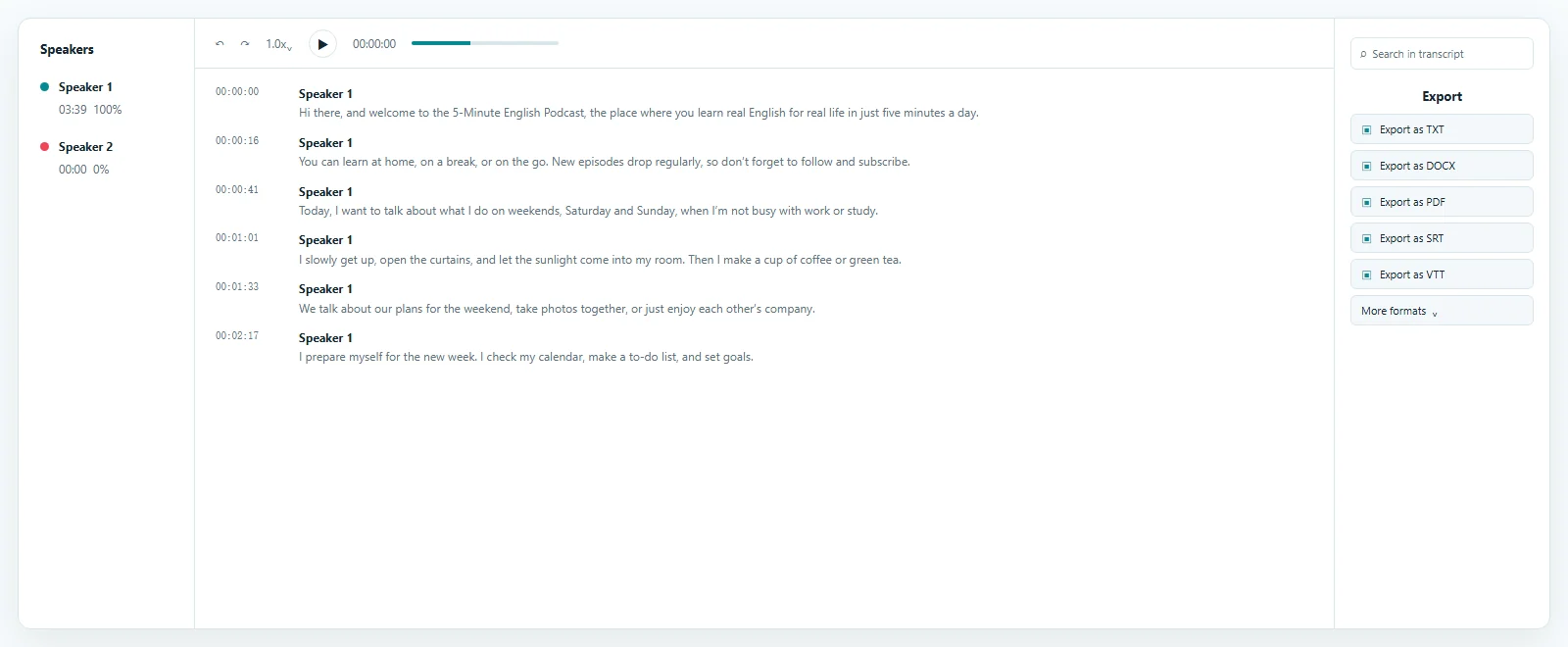
Read the Audio to SRT draft beside the recording. Open timestamps, correct names and specialist terms, refine punctuation, and review speaker labels before preparing the subtitle file.
00:00:05Speaker 1
00:00:12Speaker 2
00:00:19Speaker 1
Synced playback
4
Export the Reviewed Transcript as SRT
Open Export and choose SRT. The Audio to SRT file contains numbered cues, start and end times, and the latest saved text for a compatible downstream workflow.
Export as TXT
Export as DOCX
Export as PDF
Export as SRT
Export as VTT
Review timed text before download
Preview and Edit the Timed Transcript Before Download
The Audio to SRT preview keeps transcript segments, timestamps, speaker labels, and playback together. Search for a phrase, open its source moment, correct the wording, and confirm timing before export. Transcript opens first so the subtitle draft remains the primary result, while other workspace views stay available for later reuse.
Timed cues that remain separate from the source
How Audio to SRT Builds a Standard Subtitle File
Audio to SRT creates a separate timed-text file from spoken recordings.
Unlike a plain transcript, an SRT file records when each block should appear and disappear. Each cue contains a sequence number, start time, end time, and subtitle text, giving compatible players and editors the information needed to follow playback.
The Audio to SRT file does not contain the recording and does not permanently change video pixels. It stays editable, replaceable, and reusable after export, while presentation choices such as font, color, placement, and animation remain controlled by the destination.
1
00:00:01,200 --> 00:00:04,000
Welcome back. Today we are reviewing the project.

2
00:00:04,300 --> 00:00:07,600
First, let us look at the latest changes.
Timestamps Keep Subtitle Text Synchronized
Audio to SRT uses transcription timing as the basis for each cue. Check pauses, interruptions, and speaker changes against playback before downloading the timed result.
SRT Stays Separate from the Media
A separate Audio to SRT file can be replaced, translated, or attached to another authorized version without re-encoding the original recording or creating a new video.
Readable Cues Need Review
Subtitle text is read in short timed blocks. Review long passages, punctuation, and abrupt speaker changes so the Audio to SRT result provides a clean foundation for the next tool.
Keep human control over the final wording
Review Speakers, Names, and Difficult Audio Before Export
Audio to SRT remains editable so difficult details can be checked before export.
Clear speech, useful microphone placement, limited background noise, and less overlap generally produce an easier first draft. Important names, dates, numbers, acronyms, quotations, and technical vocabulary still deserve a source-linked check.
Use Speaker Labels During Review
Speaker recognition can separate interviews, meetings, podcasts, and research sessions. Rename or correct Audio to SRT labels, then decide whether speaker identifiers belong in the final subtitle wording.
Check Noisy or Overlapping Speech
Room noise, music, low volume, accents, and simultaneous voices can create uncertainty. Return to the relevant Audio to SRT timestamp, listen again, and correct only the line that needs attention.
Prepare timed text before the visual workflow begins
Use Audio to SRT for Common Subtitle Workflows
Audio to SRT supports audio-first projects that need timed subtitle text later.
Because the subtitle file remains independent, creators, researchers, educators, and publishers can review speech against the original recording before moving the approved cues into a compatible destination.
Podcasts and Audio-First Content
Prepare an Audio to SRT file from a podcast master before making video clips or platform versions. The reviewed transcript can also support chapters, show notes, and searchable archives.
Interviews, Meetings, and Research
Search the Audio to SRT transcript, verify quotations and speakers at their timestamps, and export SRT when a selected clip or timed deliverable is ready.
Courses, Webinars, and Voiceovers
Generate subtitle timing from narration that exists before the final visual edit. Recheck the Audio to SRT cues if later editing changes the finished timeline.
Accessibility and Publishing
Timed text can make authorized content easier to follow in destinations that accept SRT. Final display, compatibility, and accessibility requirements remain controlled by the publishing platform and project.
Choose the output that matches the next task
Audio to SRT vs Audio to Text and VTT
Audio to SRT is the right output when synchronization matters.
Choose a plain transcript for reading, documentation, research, or quotations that do not need playback timing. Choose SRT when standard numbered cues are required, or select VTT as an alternative timed-text export for a compatible web workflow.
One reviewed transcript can supply several formats without processing the recording again. This page keeps SRT primary, while TXT, DOCX, PDF, VTT, CSV, JSON, ASS, and XLSX remain available for secondary needs.
Choose a Plain Transcript When Timing Is Not Needed
Use readable text for notes, summaries, documents, and source review. Audio to SRT adds value specifically when each line must remain connected to a playback interval.
Choose SRT for Standard Timed Cues
Use Audio to SRT when a compatible player, editor, course system, or publishing workflow expects a simple subtitle file with numbered timing blocks.
Answers before you upload
Audio to SRT FAQ
Is Audio to SRT free?+
Yes. ToText allows up to 3 free files per day and transcribes the first 20 minutes of each file without a credit card, so you can test the Audio to SRT workflow first.
What is an Audio to SRT file?+
An Audio to SRT file is a separate subtitle file created from spoken audio. It contains numbered text cues with start and end timestamps and does not include the recording itself.
How do I create an SRT file from audio?+
Upload supported audio, select or detect the language, transcribe audio to SRT timing, review the text against playback, and export the corrected result as SRT.
Can I create SRT from audio without making a video first?+
Yes. The Audio to SRT file generator starts from a supported audio recording. A video is not required to create the separate timed subtitle file.
Can Audio to SRT identify different speakers?+
Speaker recognition can distinguish voices in multi-person recordings. Review and rename the labels before deciding whether speaker information belongs in the final subtitles.
Can I edit subtitle text before downloading it?+
Yes. Audio to SRT keeps the timestamped transcript editable so names, numbers, punctuation, technical terms, and speaker labels can be corrected before export.
What audio formats can I upload?+
The live uploader accepts supported formats including MP3, M4A, WAV, OGG, AAC, FLAC, and Opus. Its file selector remains the source of truth for current input support.
What is the difference between SRT and VTT?+
Both formats store timed text. SRT uses numbered cues and comma-based milliseconds, while VTT is another timed-text export commonly accepted by compatible web workflows.
How accurate is Audio to SRT?+
Accuracy depends on speech clarity, microphones, accents, background noise, vocabulary, and overlapping voices. Use timestamps and playback to verify important subtitle wording before publishing.
Does Audio to SRT permanently place captions on video?+
No. Audio to SRT creates a separate subtitle file. The destination controls how captions look and whether they are displayed with a video or another media project.
Explore more formats and outputs
Create SRT Subtitles from Your Audio
Convert audio to SRT by uploading a recording, reviewing the timestamped transcript against the source, and exporting a clean subtitle file without typing every cue manually.